Work Order Readiness Checker
Work through authorisation, property, compliance, and close-out, and tick each item once you have confirmed it yourself. See a readiness percentage for each group and a plain list of anything still unticked before you dispatch. The checklist asserts no client-specific requirement, and a tick means only that you marked it confirmed. Nothing you enter here ever leaves your browser.
- No signup required
- 100% free
- Your confirmations, your list
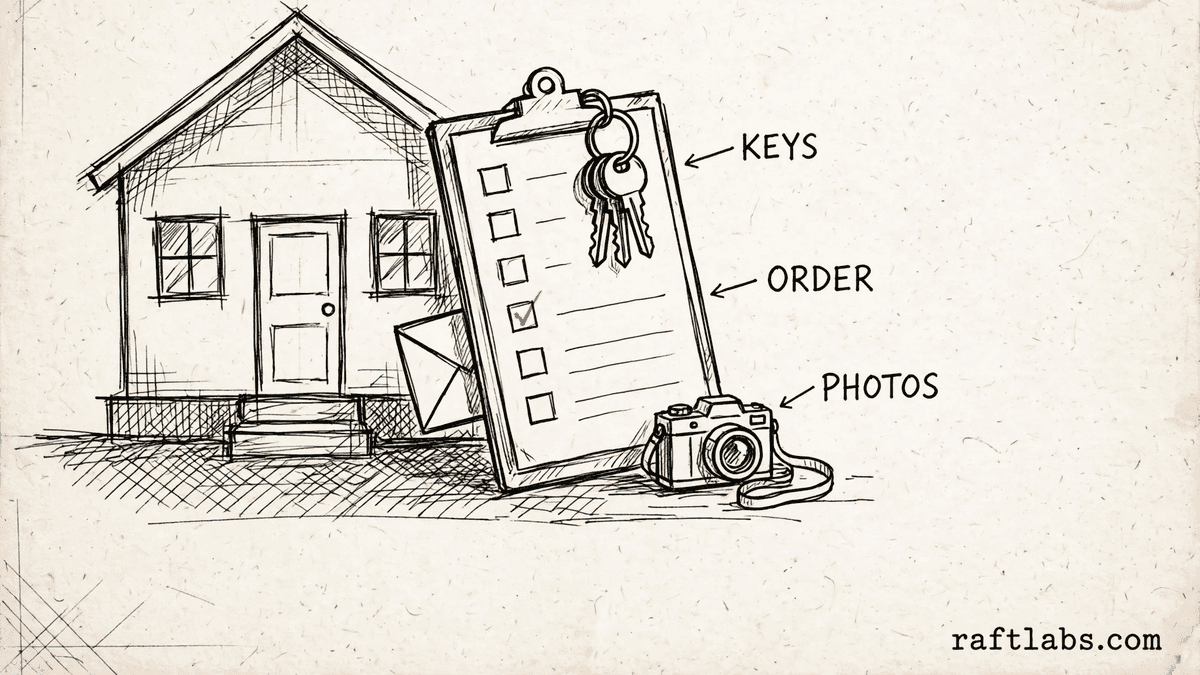
A readiness view, not an approval
Your work order
Confirm each item before you dispatch
Work through the four groups and tick each item once you have confirmed it yourself. The checklist asserts no client-specific requirement: every item is phrased as something you confirm, hold, or enter. Anything a particular client or vendor asks for on top of this list goes in as your own added row, in the group it belongs to. Nothing you enter here ever leaves your browser.
Authorisation
Loading
The order itself, and what the order asks for, confirmed before anything else is planned.
Property
Loading
The address, access, and occupancy facts the crew needs to get in and get started.
Compliance
Loading
The records and local details that have to be in place alongside the work itself.
Close-out
Loading
What proves the work was done, settled before the crew leaves so nothing is chased afterwards.
Your own requirements
Add any requirement that belongs to this order, this client, or this vendor as your own row. It counts toward the group you put it in, exactly like the rows above.
Results
Your readiness view
Loading your saved entries.
This view counts only the items you ticked, including rows you added yourself. It asserts no client-specific requirement and it is not an approval of any order. What a given order needs comes from the order itself and the client or vendor who issued it.
Running work orders across many properties by hand?
Software can hold every order, its photo sets, and its close-out documents in one place, so readiness is visible before a crew is sent out. Tell us how your team runs work orders today.
A work order readiness checker walks a property preservation crew through the confirmations needed before dispatch. It groups checks into authorisation, property, compliance, and close-out, shows a readiness percentage for each group, and lists anything still unticked as a gap to close before the crew leaves.
01 The counting
How readiness is counted
Three plain ideas turn your ticks into a percentage and a gaps list.
Four groups
The list follows the order of the work: authorisation first, then the property facts, then compliance, then close-out. Each group stands on its own, so a gap in one group is visible even when the others are fully ticked.
Your confirmations only
Nothing on the list is confirmed for you. Each item is phrased as confirmed, on hand, or entered, and it counts only when you tick it. Local details, such as registration and licence details, are typed in by you from your own records.
Gaps before dispatch
Unticked items are gathered under before you dispatch, named one by one under their group. The point of the list is that short read: what is still open, in plain words, before a crew is sent out.
The checker holds no requirement of its own. It cannot tell you what a given client expects, what a given order demands beyond what you read on it, or whether an order stands approved. Those answers sit in the order itself and with whoever issued it. What the checker does is keep the confirmations in one place and show, plainly, which ones are still open.
02 The list
The four groups
Each group covers one stretch of the work, in the order the work runs.
- 01
Authorisation
The order itself, and what the order asks for, confirmed before anything else is planned. - 02
Property
The address, access, and occupancy facts the crew needs to get in and get started. - 03
Compliance
The records and local details that have to be in place alongside the work itself. - 04
Close-out
What proves the work was done, settled before the crew leaves so nothing is chased afterwards.
How it works
Readiness is counted from the user's own ticks only. Each group shows the ticked items out of the items in that group as a percentage. The overall figure does the same across all four groups, including rows the user added. Unticked items are listed by name under before you dispatch. The checklist mirrors the property preservation workflow and asserts no client-specific requirement. Every item is phrased as something the user confirms, holds, or enters. Local registration and licence details are free fields the user fills from their own records. A ticked item means only that the user marked it confirmed. The view does not say an order is approved or complete in any legal sense.
Related tools
- 01
Auto glass
ADAS Calibration Checker
Pre-job planning list grouped by system, with the calibration categories to plan for and any prep still missing. - 02
Agritourism
Agritourism Pricing Calculator
Capacity, ticket sales, extras, and season passes, worked out for one season. - 03
Curling club
Bonspiel Bracket Generator
A draw by draw bonspiel schedule from your own teams, your own sheets, and your own draw times.
Frequently asked questions
Straight answers to what buyers ask before they scope. Still stuck? .
- Four groups that follow the way a preservation work order is run: authorisation, property, compliance, and close-out. Authorisation covers the order itself and its photo list. Property covers the address, access codes, and occupancy status. Compliance covers before photos, utility status, and the local registration and licence details you enter. Close-out covers the after-photo set and the invoice documents.
- The built-in items mirror the workflow on our property preservation management service page, and every one is phrased as something you confirm, hold, or enter yourself. The list asserts no client-specific requirement. If a client or vendor asks for something the list does not name, that requirement is yours to add as your own row, in your own words.
- Each group shows the items you ticked out of the items in that group, as a percentage. The overall figure does the same across all four groups, including any rows you added yourself. Unticked items are listed by name under before you dispatch, group by group, so the gaps are plain to see.
- Yes. Use the your own requirements panel to add a row in your own words and place it in the group it belongs to. Added rows count toward that group and toward the overall percentage, exactly like the built-in rows, and you can remove a row you no longer need.
- No. The percentage is a readiness view over your own confirmations only. A tick means you marked an item confirmed. It does not say an order is approved or complete in any legal sense, and it does not speak for the client or vendor who issued the order.
- In your own browser, on this device only. Your ticks, your added rows, and the registration and licence details you type are stored locally so the list is still here when you come back. Nothing is sent anywhere, and clearing your browser storage clears the list.
Stay on topic
More for property preservation teams
The tools give you a range. A call gives you a number.
30-minute scoping call. We will walk through how your team handles work orders, photo sets, and close-out records today, and you leave with a clear plan for the software that runs it.